 Doc Summary

Prerequisites:
- You have active job postings in the system.
- You need to access the details of a specific Job Description.
Here’s how recruiters can view and download Job Descriptions (JDs) for their postings:
1.Go to “Jobs”: On the left-hand side of your dashboard, click on the “Jobs” icon (located just below the dashboard icon). This action will take you to your Open Jobs page.
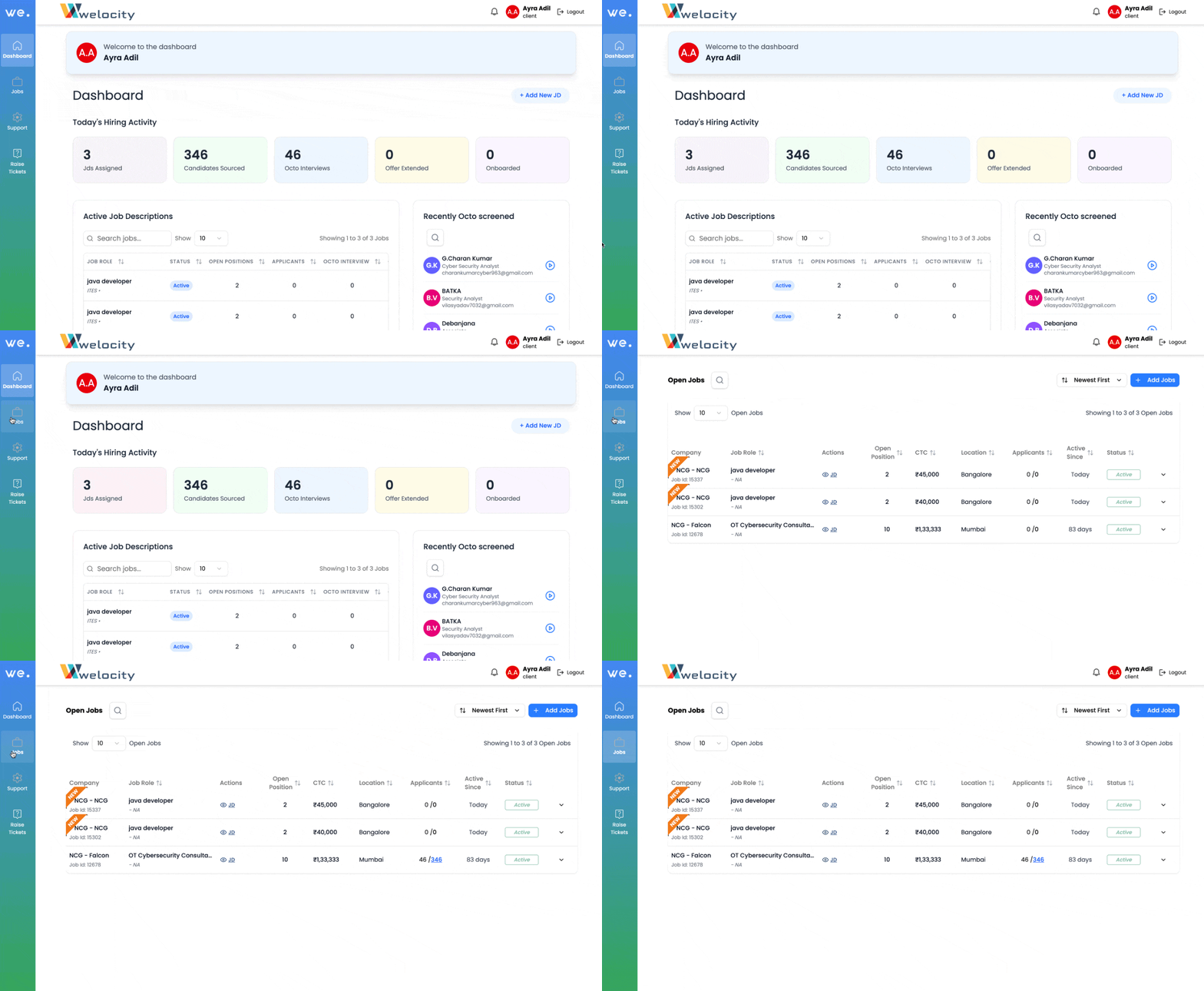
2.Locate the JD: On the “Open Jobs” page, find the specific job posting whose JD you want to view. On the right side of that job posting, you will see a section for “Actions,” which includes options like “CV” and “JD.” Click on “JD.”
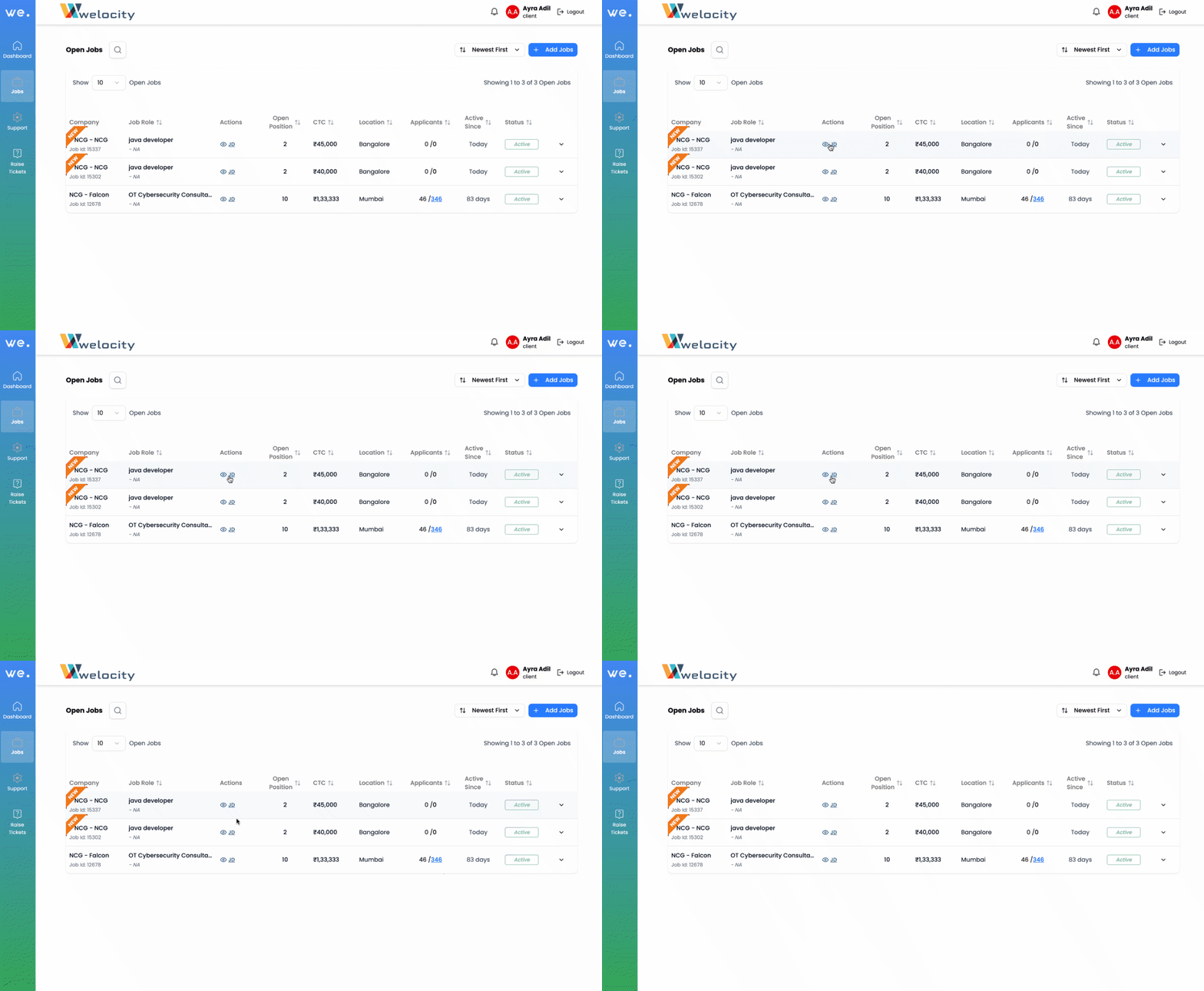
3.View the JD: The Job Description will open for your review. You’ll see comprehensive details about the role.
4.Download the JD: To download a copy of the JD, look for the “Download” option (usually an icon or button) within the JD viewer and click on it. The JD will be downloaded to your device.
5.Explore Additional Information: As you scroll down the JD, you’ll also find valuable details such as:
- Benefits the company provides.
- Required educational qualifications.
- And much more!
You can also use options like “Ask Octo” and “Boolean Search” within the platform to help you navigate and understand the JD better.
Let me know if you need any further assistance with job descriptions or other features!


