 Doc Summary

Prerequisites:
- You must have an active job posting with applicants.
- You should have reviewed the candidate’s profile and matching score.
1.Go to “Jobs”: On the left-hand side of your dashboard, click on the “Jobs” icon.
2.Access Applicants: On the “Open Jobs” page, find the relevant job posting and click on “Applicants.” This will take you to the “My Candidates” page, showing a list of all applicants for that job role.
3.Select a Candidate: Click on the candidate whose application status you wish to change. This will open their candidate profile.
4.Change Application Status: On the candidate’s profile, locate the “Status” button and click on it. A dropdown menu with various options will appear.
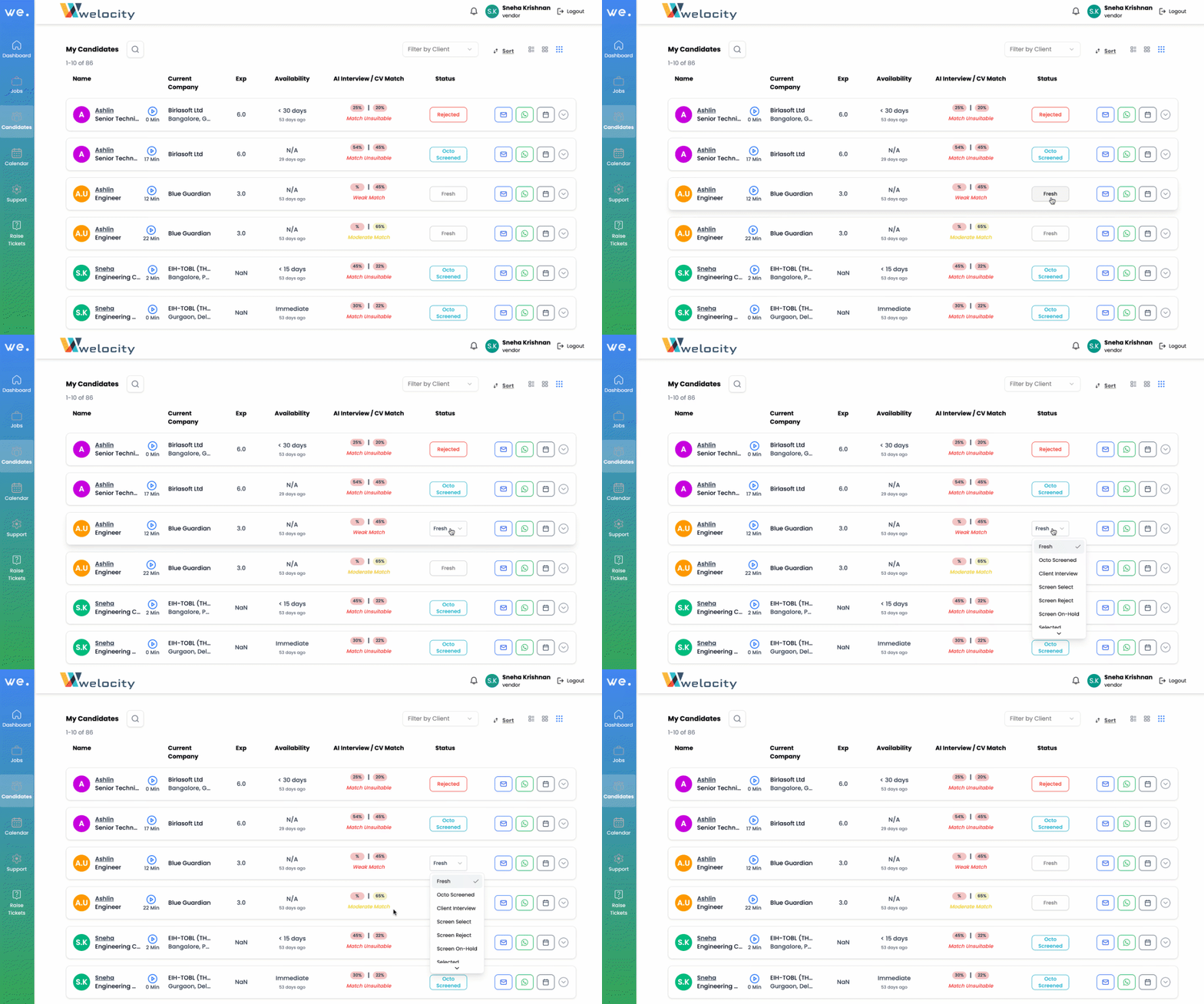
5.Here are the status options you can choose from:
- Fresh: For newly applied candidates.
- Selected: If the candidate has been chosen to move forward.
- Rejected: If the candidate is not suitable for the role at this time.
- Octo Screened: This status is automatically updated by Octo after it analyzes the candidate’s resume against the job description.
- Client Interview Status: Use this option if the candidate is scheduled for an interview with the client.
- Screen Select: Choose this if the candidate has passed your initial screening, often after reviewing their matching score.
- Screen Reject: Select this if the candidate does not meet the screening criteria based on the matching score.
- Screen On Hold: Use this if you wish to temporarily hold the candidate’s profile during the screening phase.
Important Note: An “Interview by Octo” will only happen if the candidate is first marked as “Screen Select” based on their matching score.
Hold Candidate Profile: You also have the option to put a candidate’s entire profile on hold if needed.


